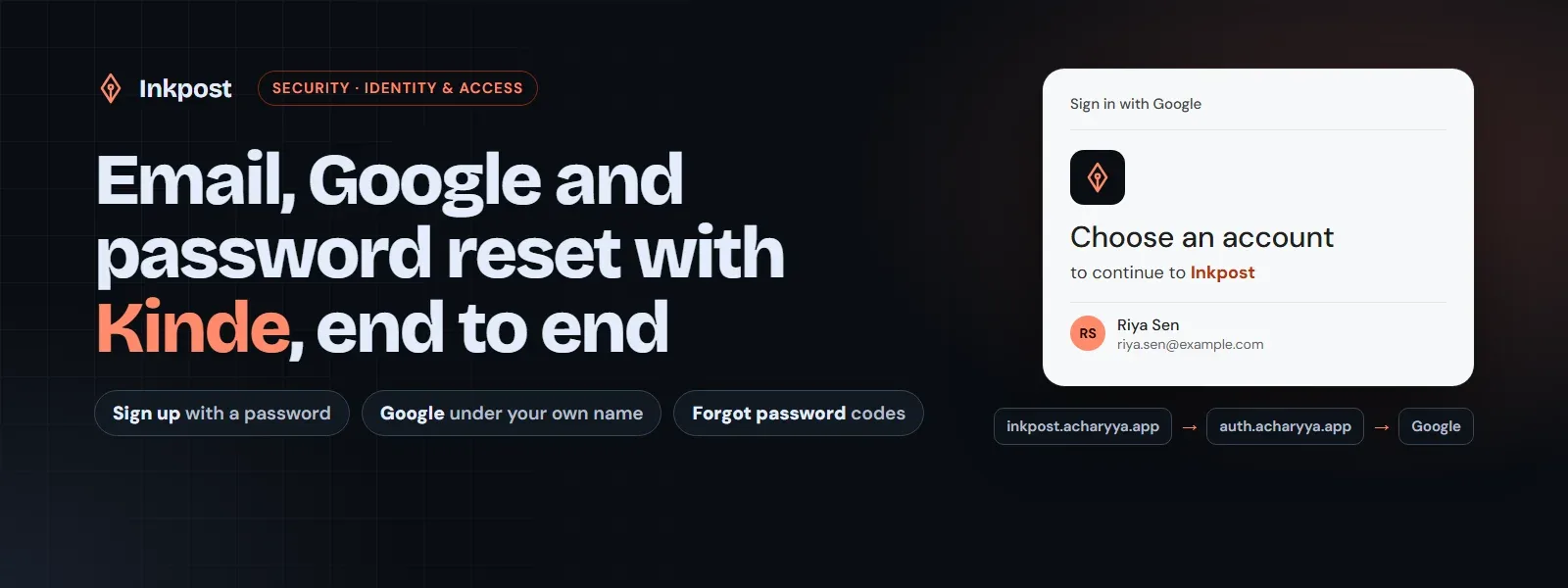
Security · Identity & access
Email, Google and password reset with Kinde, end to end
How Inkpost signs people up with an email and a password, lets them continue with Google through its own Google Cloud client (so Google says "Inkpost", with its logo, not kinde.com), and resets forgotten passwords with an emailed code.

8 min read
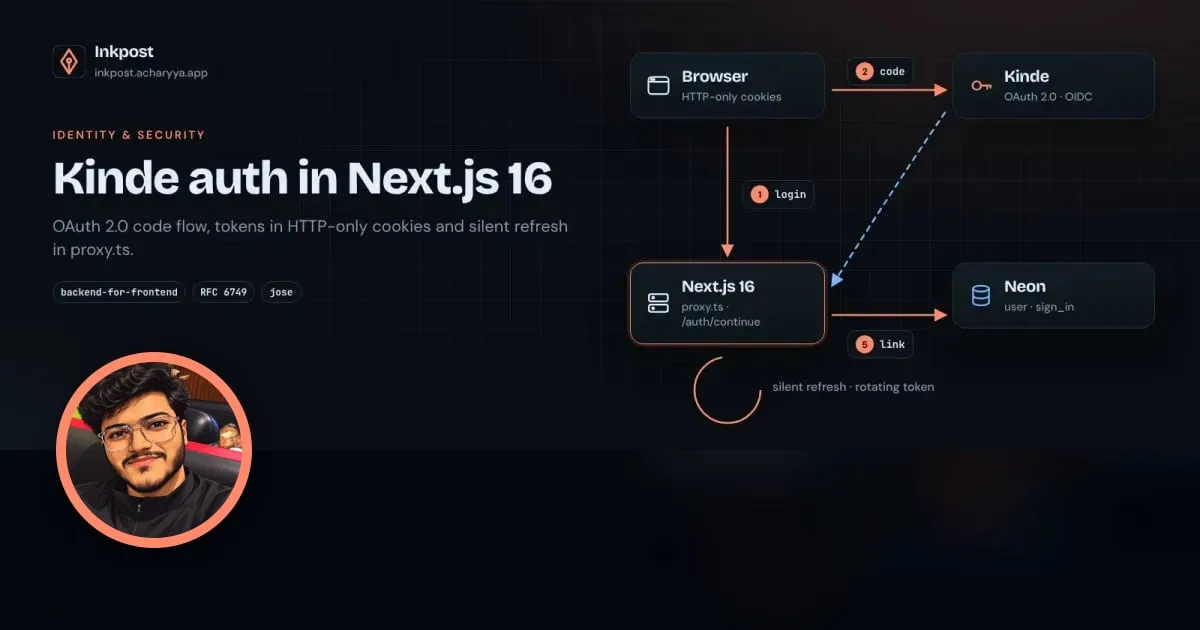
Inkpost lets people in three ways: an email and a password, Google, or a reset code when the password is forgotten. Kinde runs all three. Inkpost's own pages collect only an email and a name. Every step that touches a secret (the password, the email code, Google's consent) happens on Kinde's pages, on Inkpost's own sign-in domain, auth.acharyya.app. This post walks through each flow, then the setup that makes Google say "Inkpost", with its logo.
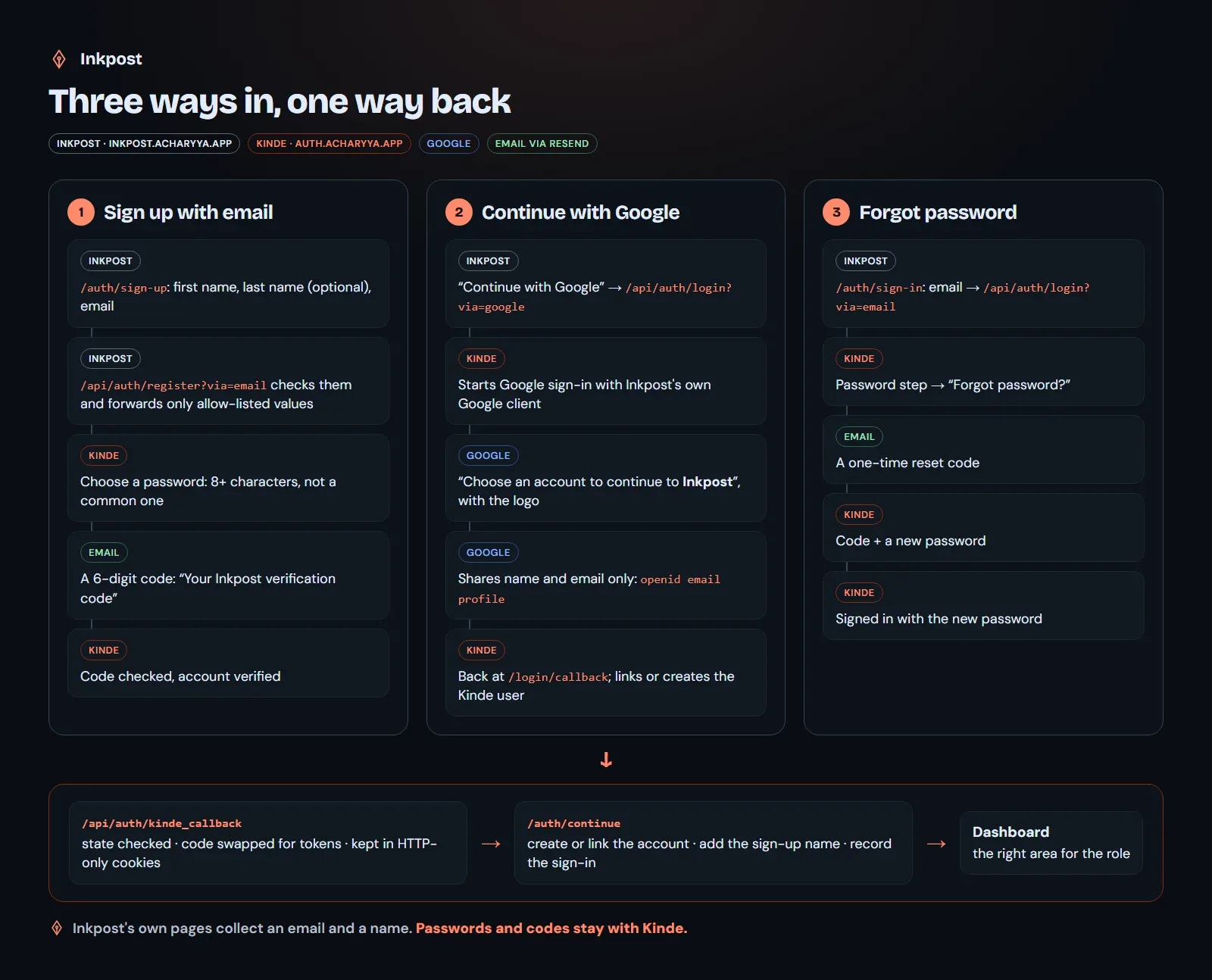
The three flows at a glance
Transcript
1. Sign up with an email and a password
On /auth/sign-up, the person types a first name (required), a last name (optional) and an email.
The form goes to /api/auth/register?via=email. The server checks the email and the name, then forwards only allow-listed values to Kinde, with the email connection's ID.
Kinde asks for a password: at least 8 characters and not one of the million most common. It then emails a 6-digit code, "Your Inkpost verification code", sent through Resend and signed with DKIM for acharyya.app.
Kinde sends the browser to /api/auth/kinde_callback. The Kinde SDK checks the state, swaps the code for tokens and keeps them in HTTP-only cookies.
/auth/continue creates the Inkpost account (a contributor applicant, waiting for review), adds the name it kept for 30 minutes in an HTTP-only cookie, records the sign-in and opens the dashboard.
The first step is ours, so it matches the site's design and passes the same accessibility checks; everything secret is Kinde's. This is the function that decides what Kinde receives:
// lib/server/auth/policy.ts (trimmed): only allow-listed values reach Kinde.export function kindeStart(route: "login" | "register", query: URLSearchParams, connections: KindeConnections) { const params = new URLSearchParams(); const via = query.get("via"); if (via === "google") { params.set("connection_id", connections.google); return { kind: "kinde", params } as const; } if (via === "email") { const email = (query.get("login_hint") ?? "").trim(); if (!isEmailAddress(email)) return ownPage("email"); // back to our form, with a field error params.set("connection_id", connections.email); params.set("login_hint", email); if (route === "register") { const first = cleanName(query.get("given_name")); // trimmed, no control characters, 50 at most if (!first) return ownPage("name"); params.set("given_name", first); const last = cleanName(query.get("family_name")); if (last) params.set("family_name", last); } return { kind: "kinde", params } as const; } return ownPage();}2. Continue with Google, under your own name
Without keys of your own, Kinde signs people in with its shared Google client, and Google's account chooser then says "to continue to kinde.com". People think they are signing in somewhere else. The standard fix is your own Google OAuth client, connected to Kinde's custom domain. Kinde's own docs ask for it before going live.Source [1]
Do not use Kinde's app credentials by leaving the fields blank
Kinde docs, "Google social sign in"
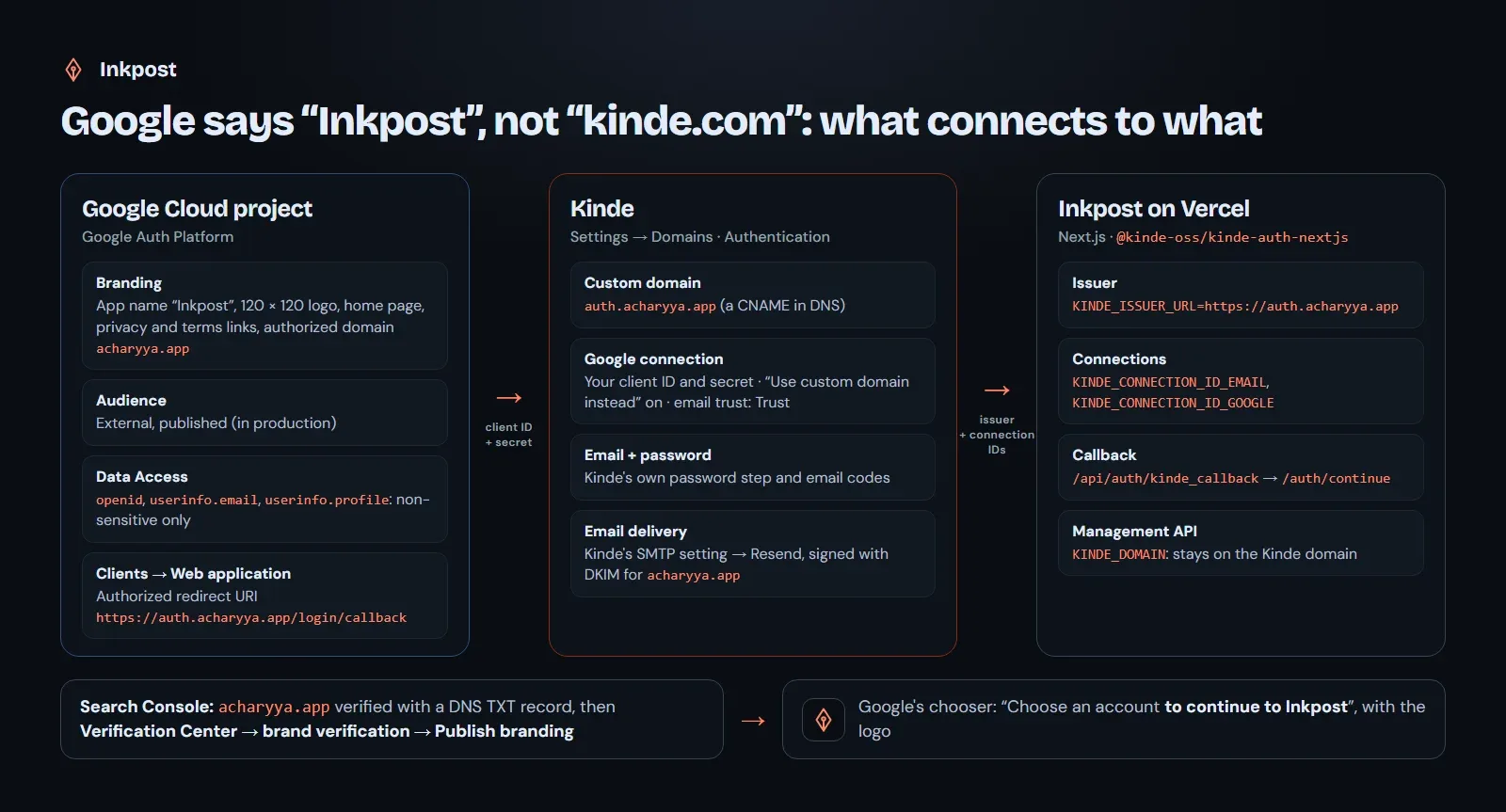
Where | What to set | Inkpost's value |
|---|---|---|
Google Auth Platform → Branding | App name, support email, logo (120 × 120, under 1 MB), home page, privacy and terms links, authorized domain | Inkpost · inkpost.acharyya.app · acharyya.app |
Google Auth Platform → Audience | User type External, then Publish app | In production |
Google Auth Platform → Data Access | Non-sensitive scopes only | openid, userinfo.email, userinfo.profile |
Google Auth Platform → Clients | Web application with an authorized redirect URI | https://auth.acharyya.app/login/callback |
Kinde → Settings → Domains | Custom domain (a CNAME in DNS) | auth.acharyya.app |
Kinde → Settings → Authentication → Google | Client ID and secret, "Use custom domain instead" on, email address trust | Our own keys, kept only in Kinde |
Google Search Console | Domain property, verified with a DNS TXT record | acharyya.app |
Google Auth Platform → Verification Center | Brand verification, then Publish branding | "to continue to Inkpost" + logo |
Google shows the app name and logo only after brand verification. Until then people see the domain. It checks that the home page names the app, links the privacy policy and sits on a domain you've verified.Source [2]Source [3]
Switching without locking anyone out
On the app's side it's settings, not code. The client ID and secret live only in Vercel's encrypted environment; KINDE_DOMAIN keeps Kinde's Management API on Kinde's own domain, because its audience doesn't move to the custom domain.
KINDE_ISSUER_URL=https://auth.acharyya.app
KINDE_DOMAIN=https://<your-business>.kinde.com
KINDE_SITE_URL=https://inkpost.acharyya.app
KINDE_POST_LOGIN_REDIRECT_URL=https://inkpost.acharyya.app/auth/continue
KINDE_POST_LOGOUT_REDIRECT_URL=https://inkpost.acharyya.app
KINDE_CONNECTION_ID_EMAIL=conn_…
KINDE_CONNECTION_ID_GOOGLE=conn_…3. Forgot password, and passwords in Settings
Kinde owns the reset flow too, so Inkpost never handles a reset link or a password.Source [4]Source [5]
On Kinde's password step, "Forgot password?" emails a one-time code, through the same Resend connection and from the Inkpost sender.
The person types the code and a new password. Kinde signs them in and sends them back through /auth/continue.
Five wrong passwords lock the account for five minutes. That's Kinde's rule, with nothing to build.
Signed in, Settings → Password sets a password for a Google-only account after an emailed code, or changes one after "Confirm it's you", a fresh Kinde sign-in in a popup. The server checks the new password against Pwned Passwords (only the first five characters of its SHA-1 hash leave the server) and hands Kinde a bcrypt hash. Inkpost never stores it.Source [6]
Transcript
Go further
A video walkthrough of Kinde in a Next.js app, and where this was shared:
Three ways in, one way back, and no secret on Inkpost's side: that's the whole flow.
Sources
- Google social sign in, Kinde. Accessed 2026-11-18. Back to the text for source 1
- Submit for brand verification, Google for Developers. Accessed 2026-11-18. Back to the text for source 2
- Manage OAuth App Branding, Google Cloud Help. Accessed 2026-11-18. Back to the text for source 3
- Password authentication, Kinde. Accessed 2026-11-18. Back to the text for source 4
- Forgot Password Cheat Sheet, OWASP. Accessed 2026-11-18. Back to the text for source 5
- API v3: Pwned Passwords, Have I Been Pwned. Accessed 2026-11-18. Back to the text for source 6
- Kinde
- Authentication
- OAuth 2.0
- Google Cloud
- Next.js